|
Dialog Boxes: Forms, Fields, and Native File Pickers |
Dialog Boxes
A menu asks for one choice. A dialog box asks for a whole form at once — several fields, checkboxes, a dropdown, a paragraph of text — and hands it all back in one answer. It is the same idea as a web form, written in a small, familiar HTML-like language, and Sheerpower draws it as a real window in your operating system's native style. The very same statement also opens the native file dialogs (Open, Save As, and folder pick), so a program never has to hand-roll a file chooser.
This page teaches the everyday dialog box: how to define one, the controls you will reach for most, and how to read the answer back. The full list of every tag and attribute lives on the companion reference, Dialog Box Reference: Every Tag and Attribute.
Each section opens with the idea; click a Show me line for the details and examples, or Expand all.
1. The Shape of a Dialog Box
A dialog box is a string — an HTML-like definition —
handed to line input dialogbox. The window is a
<sheerpower> element; inside it, a
<form> holds the fields, each field is an
<input>, and a <input type=submit>
button closes the form and returns the answer. Because the definition is
just a string, you build it the same way you build any string — with
+, or as one %text block.
Show me: the smallest complete dialog box
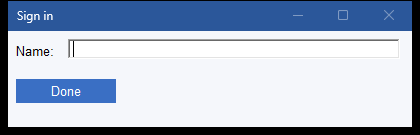
A small window titled Sign in appears with one text field
labelled Name: and a Done button. (Done
is the default label of a submit button; set value="Sign in" on the
<input type=submit> to change it.) Type Ada,
click Done, and the program prints:
Under the hood the answer is the field's name, an =,
and what was typed — user=Ada — with every field ended
by a single separator byte, chr$(26).
between$(answer$, 'user=', chr$(26)) pulls one field's value out by
its name: everything from user= up to that separator. That
name=value shape is the whole convention — every control
reports back under its name, and section 3 shows how to read
several of them at once.
2. Writing the Definition as a %text Block
Concatenating a dialog with + works, but a real form is easier
to read as one %text raw block (see
String handling). Everything between %text and
%end text is the string, verbatim, so the definition reads like
the form it describes.
Show me: the same form as a %text block
Identical result, far easier to edit. Use %text trim so the
indentation that keeps your source tidy does not end up inside the string.
Every example from here on could be written either way; the shape is what
matters.
3. Reading the Answer
When more than one control returns a value, the answer holds one
name=value pair per control, each ended by a single separator
byte, chr$(26). Read a field by its name with
between$(answer$, 'name=', chr$(26)) — it returns the text
from that field's name= up to the separator that follows it.
Show me: a two-field form and reading each field by name
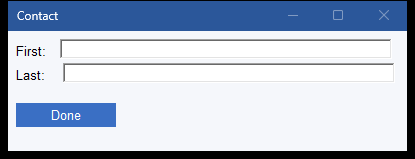
Entering Ada and Lovelace prints:
Each field is ended by chr$(26) — the submit
button's own SUBMIT= pair included — so a field is readable
by name wherever it sits in the answer, first, last, or only. A field left
empty returns "". Closing the window instead of submitting
returns an empty answer, so test answer$ = '' when a cancel
matters. When you do not know the field names ahead of time, walk the pairs
instead with elements(answer$, chr$(26)) and
element$(answer$, n, chr$(26)), splitting each on its first
= and skipping the empty final piece.
4. The Everyday Controls
Most forms are built from a handful of controls: single-line text and
password fields, checkboxes, radio buttons, a dropdown
(<select>), and a multi-line box
(<textarea>). Each carries a name; the value
they report depends on the kind of control.
Show me: every common control in one form, and what each returns
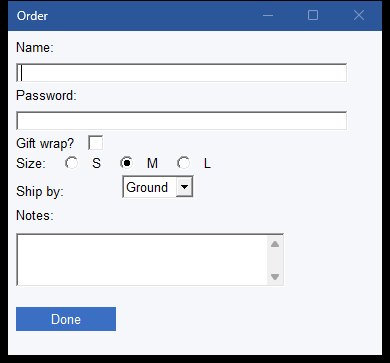
What each control reports under its name:
| Control | Value returned |
|---|---|
| text / password | The characters typed. |
| checkbox | 1 when checked, 0 when not. |
| radio group | The value of the one button that is selected (a group shares one name). |
| select | The value of the chosen option (a multiple select returns each chosen value, joined by chr$(10)). |
| textarea | The text; with wrap=physical, the visible lines are joined by chr$(10). |
checked on a checkbox or a radio button makes it start
selected; selected does the same for an
<option>. rows and cols size a
textarea. A <select> with size greater than
one, or with multiple, is drawn as a list box instead of a
dropdown.
5. Sizing and Titling the Window
The <sheerpower> element is the window itself. Give it a
title, a width and height (in pixels,
or a percentage like width="60%"), and a background
color. Leave the size off and the window fits its contents.
Show me: a titled, sized, coloured window
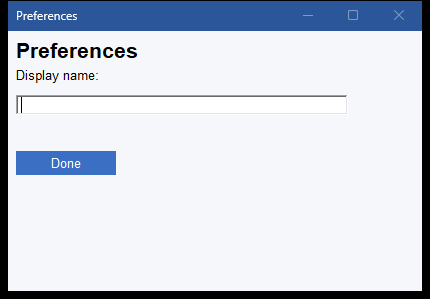
The window opens 420 by 260 pixels on a pale ground, titled
Preferences, with an <h2> heading above
the field. The full set of window options — always-on-top, no-resize,
a timed auto-submit, loading the body from a URL, and more — is in the
reference.
6. Checking Answers as They Are Entered
A field can validate itself. Put a valid rule on an
<input> and the dialog refuses to submit until the field
passes — the same rule words as the valid option on
line input (see Making Console Applications: Prompts, Input Options, and Menus):
required, integer, number,
digits, letters, date,
minlength n, maxlength n, and the rest.
A message attribute gives the field a hint the person sees when
the field is active.
Show me: a required field and a numeric field
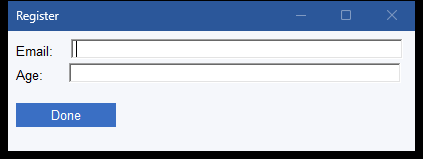
Submit with the email blank and the dialog refuses and points at the empty
field; type letters into Age and it refuses that too. Only
a form that passes every rule closes and returns its answer, so the code
after line input dialogbox can trust what it receives.
7. Pre-filling a Form (the default clause)
A second string after the definition — line input dialogbox spec$,
default seed$: answer$ — fills the fields in before the
form appears. The seed uses the same name=value pairs
joined by chr$(26) that the answer comes back in (section 3), so a
form's own answer can be handed straight back as the default to re-show it for
editing.
Show me: a form that opens already filled in
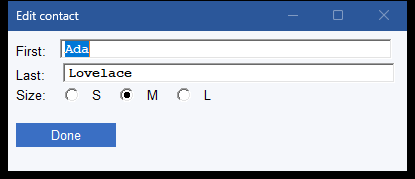
The window opens with First already holding Ada,
Last holding Lovelace, and the M
radio selected — each field matched to the seed by its name
(a checkbox takes 1/0; a radio or select takes the
option's value). Because the seed and the answer share one format,
the edit-in-place idiom is a single line: show a form, take its answer, and pass
that answer back as the default the next time.
8. The Native File Dialogs
Set type on the <sheerpower> element and the
same statement opens your operating system's real file dialog instead of a
form: type=open to choose a file to read,
type=saveas to choose where to write, and
type=select to pick a folder. The answer is the full path the
person chose (empty if they cancelled). A filter limits the
file types shown.
Show me: an Open dialog, filtered to one file type, that returns a path
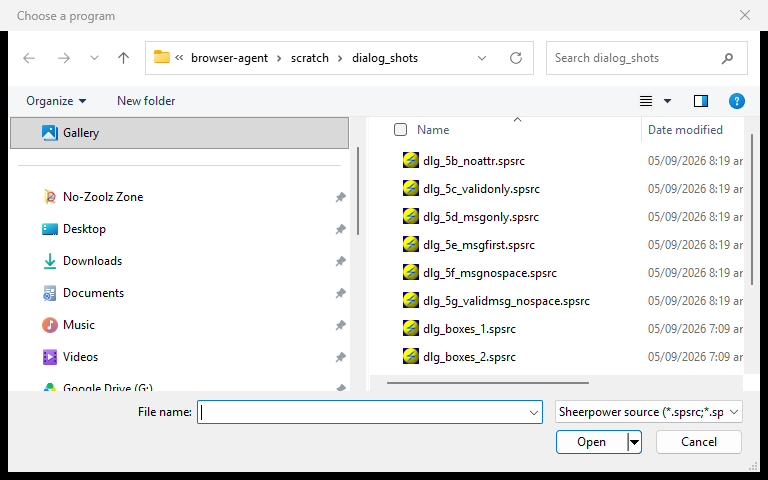
The native Open dialog appears with its type box set to
Sheerpower source (*.spsrc; *.spinc), so only those files are
listed. Pick one and path$ holds its full path; press Cancel and
path$ is empty. This is the right way to ask for a file — it
uses the same chooser every other program on the machine uses, with no UI to
build. The filter is written name=pattern —
several patterns separated by commas, several named filters by semicolons; add
, default start_dir$ after the definition to open in a particular
folder.
9. Beyond the Basics: Events, Buttons, and Links
A few more attributes turn a static form into a responsive one, and two extra controls round out the toolkit — each is a one-attribute change.
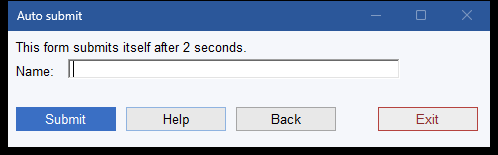
Show me: submit automatically (onchange / onclick / autosubmit)
onchange="submit" on a field submits the form the moment that field
changes; onclick="submit" does it when the control is clicked.
Handy for a menu-like dropdown that acts on the pick with no separate button:
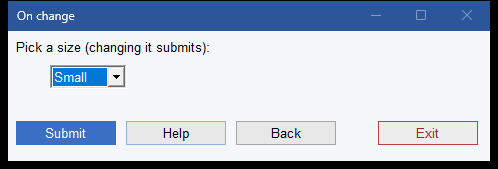
Only "submit" is understood by these two. To submit after a
period of inactivity instead, put autosubmit= seconds on
the <sheerpower> element — the form returns on its own
when the time is up, exactly as if the person had clicked the button:
Show me: check a field the moment it is left (call)
call="routine_name" on an <input> runs one of your
routines each time that field loses focus — live, per-field checking while
the form is still open (the routine name needs an underscore, as all routine
names do).
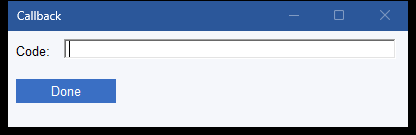
Use call when a rule is too involved for a valid word
— a check against a database, say — and you want the answer before
the person moves on.
Show me: an image as the submit button (type=image)
<input type=image src="..."> uses a picture as the submit
button. Point src at a bitmap; filespec$('@name')
resolves a file that sits next to the program:
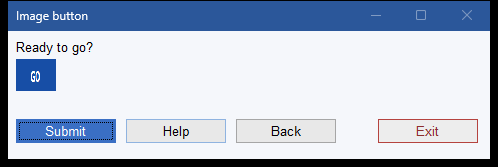
Clicking the image submits the form and also reports where it was
clicked, as go.X= and go.Y= pairs in the answer —
an image map, when the spot on the picture matters.
Show me: a clickable link (a href)
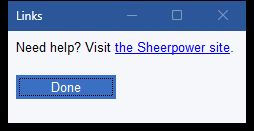
<a href="..."> draws its text as a link inside the dialog —
a place to point the person at help or a web page without leaving the form.
10. Sortable Tables
A table lays data out in columns with <table>, rows
<tr>, data cells <td>, and heading cells
<th>. Add sort to a heading —
<th sort> — and that column becomes sortable: a small
diamond appears beside the heading, and clicking it re-orders the whole table
by that column.
Show me: a table with two sortable columns
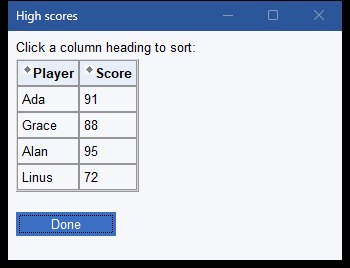
Both headings carry a sort diamond. Click Player and the four
rows re-order alphabetically; click Score and they re-order by
number. The first click on a column sorts ascending, clicking the same heading
again flips to descending, and clicking the other heading switches to sorting by
that column. Only headings you mark <th sort> are clickable
— leave sort off to keep a column fixed.
Sorting re-sequences the entire table, so each row's cells travel together, and it is purely a convenience for the person reading it — it does not change what the form returns on submit. For the full table and cell attributes, see Dialog Box Reference: Every Tag and Attribute.
Dialog Box Takeaways
- A dialog box is an HTML-like string handed to
line input dialogbox spec$: answer$; Sheerpower draws it as a native window. - Wrap the whole thing in
<sheerpower>...</sheerpower>; put fields inside a<form>; end with<input type=submit>. - Build the definition with
+or, more readably, as one%text trimblock. - The answer is
name=valuepairs, each ended bychr$(26); read a field by name withbetween$(answer$, 'name=', chr$(26)). - Checkboxes return
1/0, radios and selects return the chosenvalue, a textarea returns its text. validon a field refuses a bad answer before the form can submit; a cancelled or closed dialog returns an empty answer.- A
defaultstring — the samename=valuepairs joined bychr$(26)the answer uses — pre-fills the fields; feed a form's own answer back to edit it in place. - Make a form act on its own:
onchange/onclick="submit", a timedautosubmit=, orcall=a routine for live per-field checks. - Two more controls:
<input type=image>(a picture as the submit button, reporting the click point) and<a href>links. <sheerpower type=open>/saveas/selectopen the native file and folder pickers and return the chosen path.- Lay data out with
<table>/<tr>/<td>/<th>; mark a heading<th sort>to let the person sort the whole table by that column. - Every tag and attribute is catalogued on Dialog Box Reference: Every Tag and Attribute.